Channels
Channels bring Cairn's attention requests to the messaging apps where you already are. Cairn can deliver questions, permission requests, reviews, and followed-work updates through iMessage, Telegram, and Discord. A GitHub App mention can start work from a repository conversation. Channels extend work already organized in Cairn; they are not standalone chatbots.
How channel conversations work
Each destination has an inbound allowlist, independent inbound grants, and a choice of what Cairn may deliver. The allowlist is checked first. Traffic from outside it is ignored; admitted senders can use only the capabilities granted to that conversation:
- Permissions allows approving or denying permission requests.
- Answers allows answering questions and using follow, focus, subscription, and poll controls.
- Free text allows loose messages to reach the focused or bound Cairn target as instructions.
With none of these grants enabled, the conversation is notify-only. Grants are independent, so a conversation can answer questions without accepting loose instructions, or carry permission decisions without becoming a general command surface.
Replies to a delivered ask return to the waiting agent; replies to followed-work updates return to that thread or issue. A loose message goes to the currently focused follow only when Free text is enabled.
/threadsand/issueslist active work. Choose an item to follow and focus it./focus <name>focuses an existing follow./unfollow <name>stops its updates. With no name, it unfollows the focus./helpshows the command summary.
Cairn uses polls when a provider supports them. Selecting an item follows and focuses it. iMessage can report a poll deselection and unfollow it; on tap-only providers such as Telegram, use /unfollow.
Questions and permission requests are posted to every eligible carrying surface, including the desktop and configured channel conversations. The first accepted answer wins, retires the controls on the other surfaces, and leaves a receipt such as Allowed via Discord · 17:56. The durable receipt retains the provider, canonical conversation address, authenticated actor when known, and absolute decision time. The surface says how the answer appeared; the actor says which principal answered. A surface name never grants or implies authority.
iMessage setup
Prerequisites
- A macOS fleet executor signed in to the intended Messages account.
- A working
imsgbridge with the required macOS privacy permissions. - The phone number or email that will receive messages.
Configure iMessage
- Open Settings › Channels › iMessage and select the macOS Executor.
- Enter the destination under Recipient.
- Add every phone number or email allowed to answer under Allow replies from. For a personal setup, add the recipient itself.
- Enable the inbound grants this conversation needs. Permissions and Answers make a focused operator conversation useful without allowing loose instructions; add Free text only when intended.
- Choose what to send under Deliver, then enable iMessage.
Screenshot slot: iMessage executor, recipient, and allowlist settings.
The selected executor owns this connection. Cairn does not silently move it to another machine when that executor is offline.
Telegram setup
Allow about five minutes for a direct-message setup.
- Message @BotFather, send
/newbot, follow its prompts, and copy the token. - Message @userinfobot and copy your numeric user ID.
- Find your new bot, tap Start, and send it a message. A bot cannot initiate a direct-message conversation.
Screenshot slot: BotFather's new-bot flow and returned token.
Screenshot slot: @userinfobot showing the operator's numeric user ID.
The number before the colon in the bot token is the bot's ID, not your user ID. Do not use it as the Chat ID.
- Open Settings › Channels › Telegram and paste the Bot token.
- For a direct message, enter your numeric user ID as the Chat ID and add it to Allow replies from. The allowlist is required.
- Enable the inbound grants this conversation needs. Leave all three off for notify-only delivery.
- Choose what to send under Deliver, then enable Telegram.
Screenshot slot: Telegram token, Chat ID, allowlist, and delivery settings.
For a group, the Chat ID is negative. Add the bot, send a fresh message, then read message.chat.id from Telegram's getUpdates response while Cairn's Telegram channel is disabled. The Bot API URL contains your token: do not put it in a shared request tool, and clear it from history. Keep your own positive user ID in the allowlist. If ordinary group messages must reach Cairn, use /setprivacy with @BotFather to disable bot privacy mode.
Discord setup
You need permission to create a Discord application and install it in the destination server.
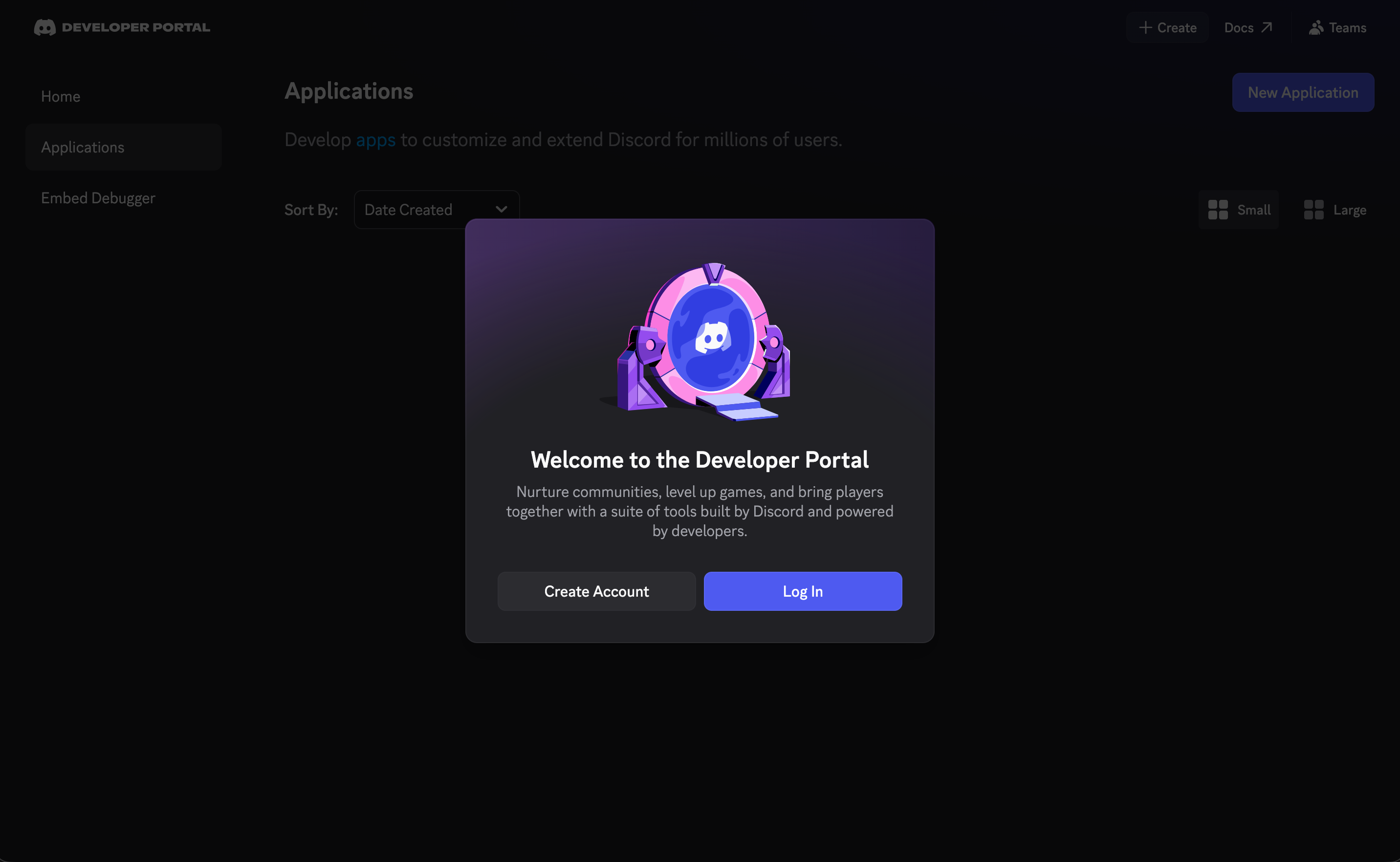
- Open the Discord Developer Portal, sign in, and choose New Application.

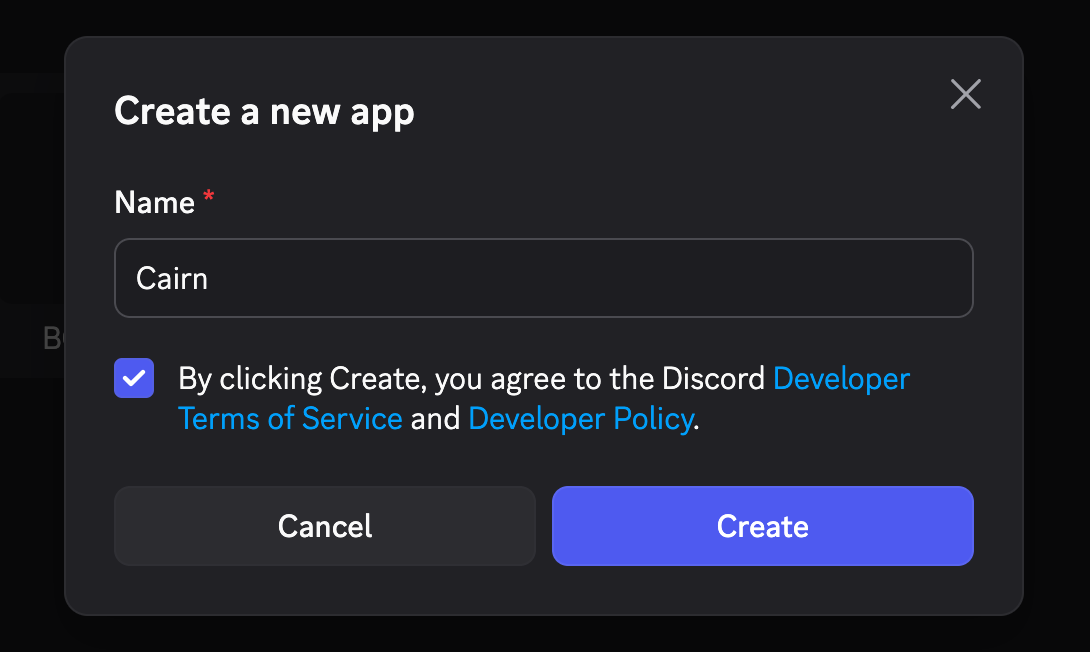
- Name the application, accept Discord's terms, and create it.
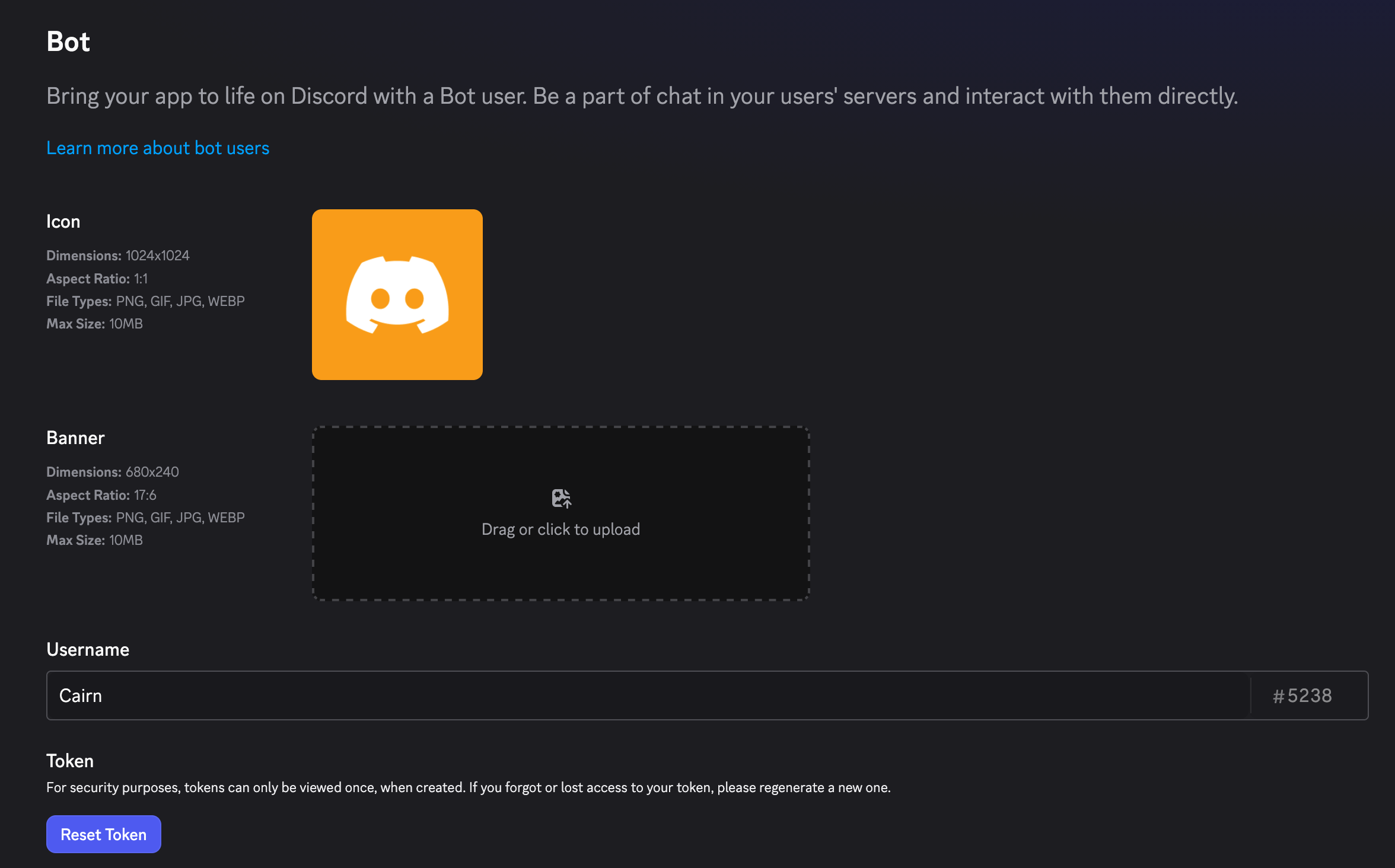
- Open Bot. Under Token, choose Reset Token, copy the new token, and keep it private. Discord only shows it once.
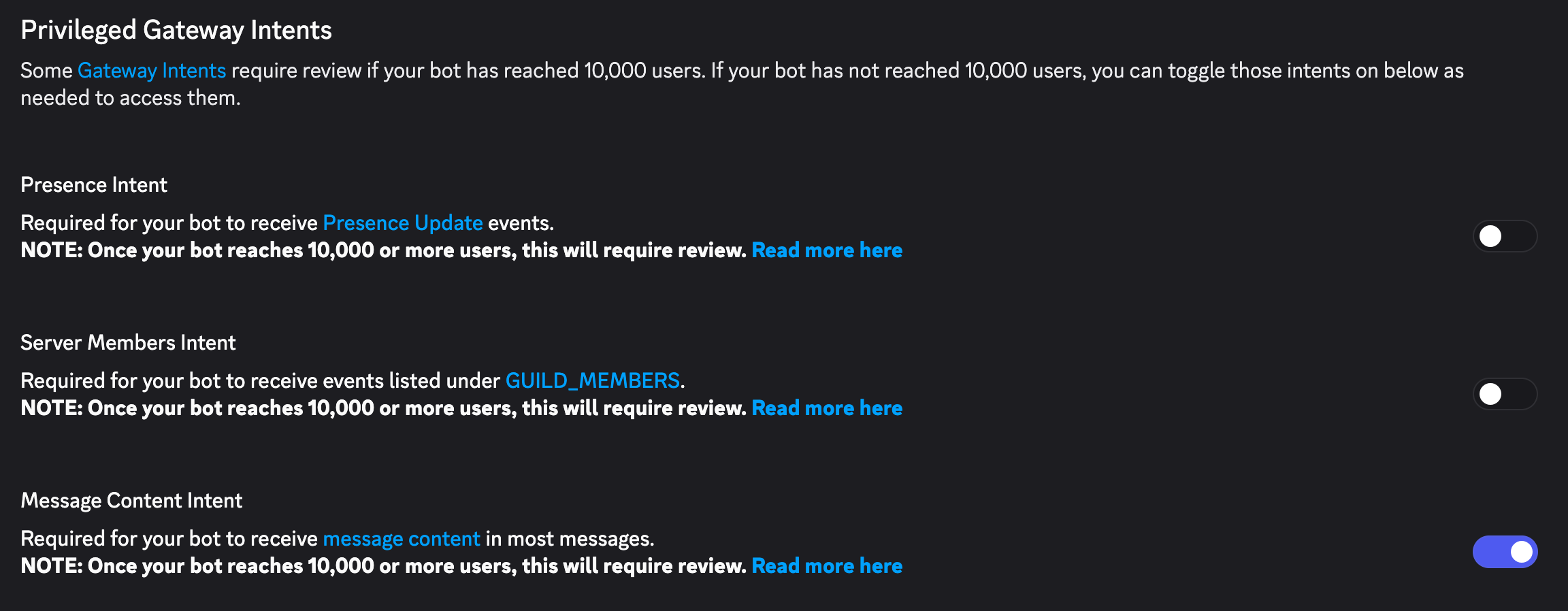
- Scroll to Privileged Gateway Intents and enable only Message Content Intent. Presence Intent and Server Members Intent are not required.
- Open Installation. Under Guild Install, include the
botscope and grant View Channels, Send Messages, Read Message History, Manage Channels, Manage Threads, and Send Messages in Threads.
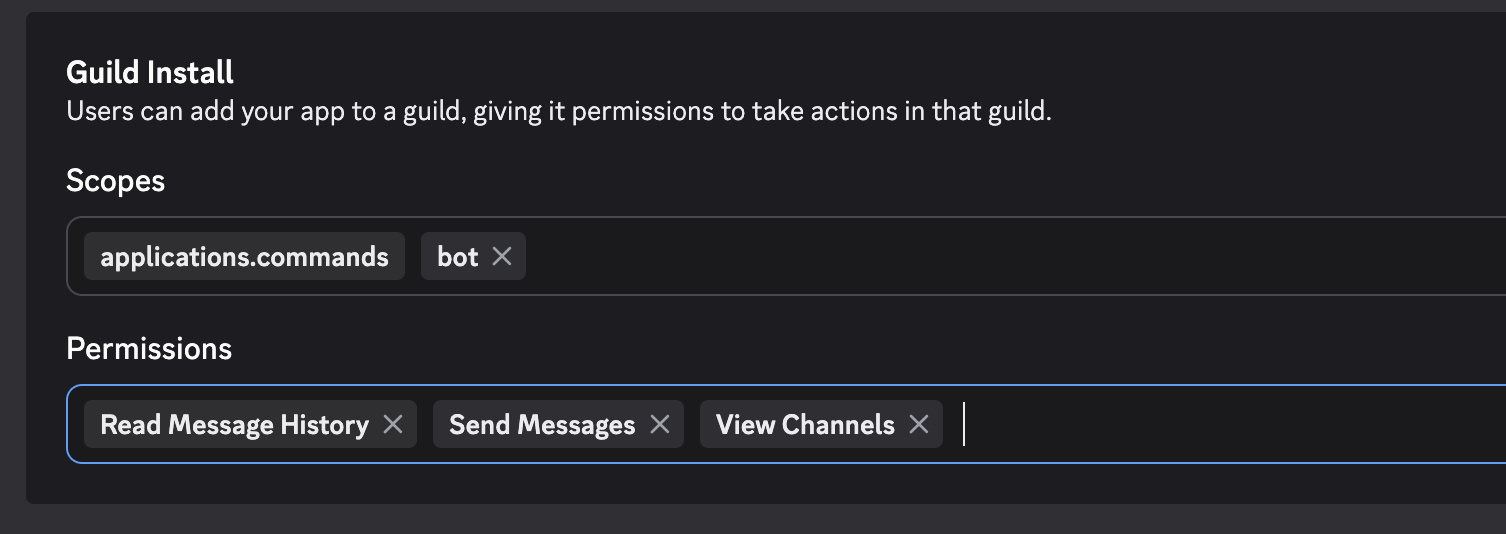
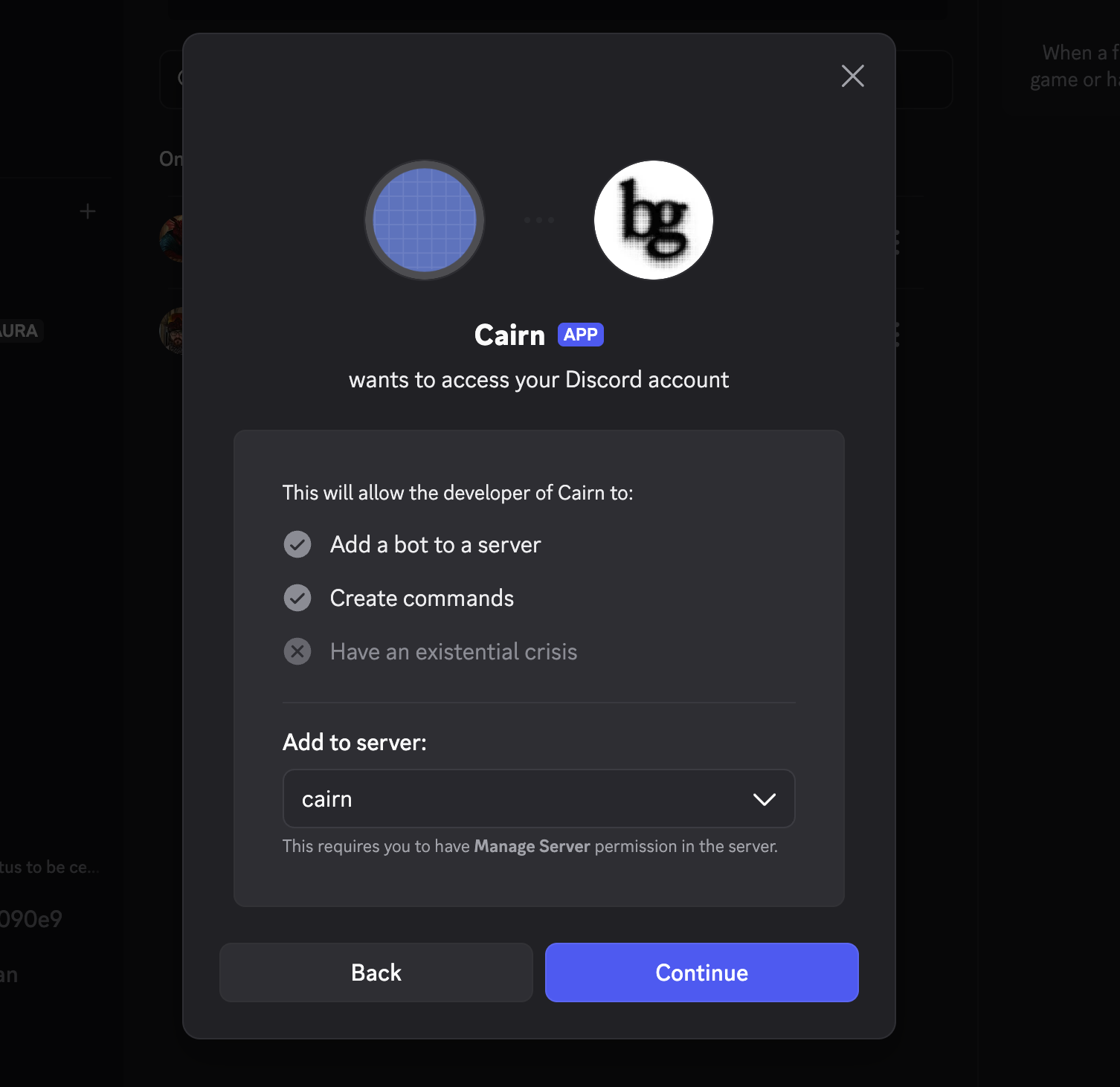
- Save, copy the installation link, open it, choose the server, and authorize it.
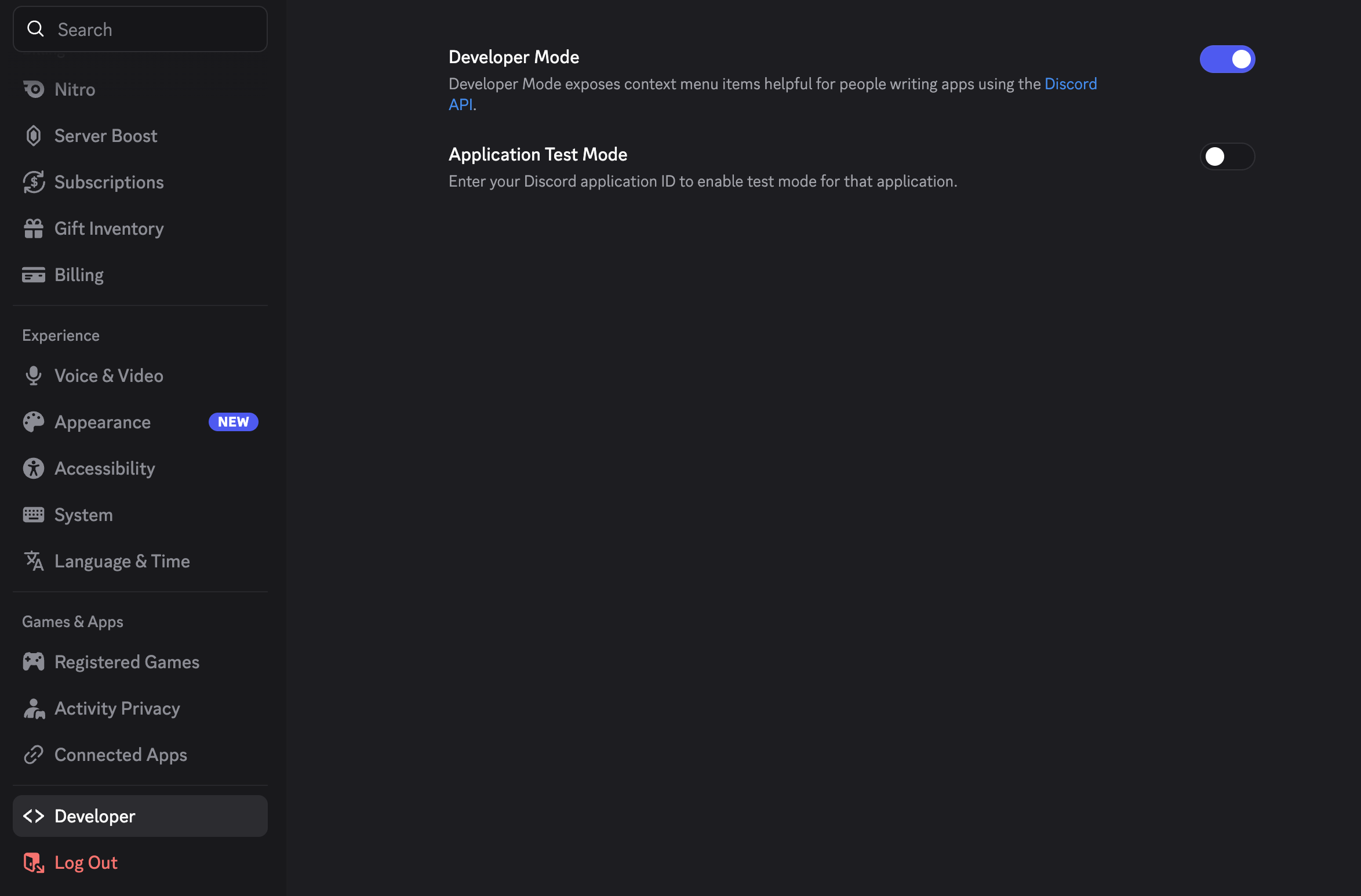
- In Discord, open User Settings › Advanced and enable Developer Mode.
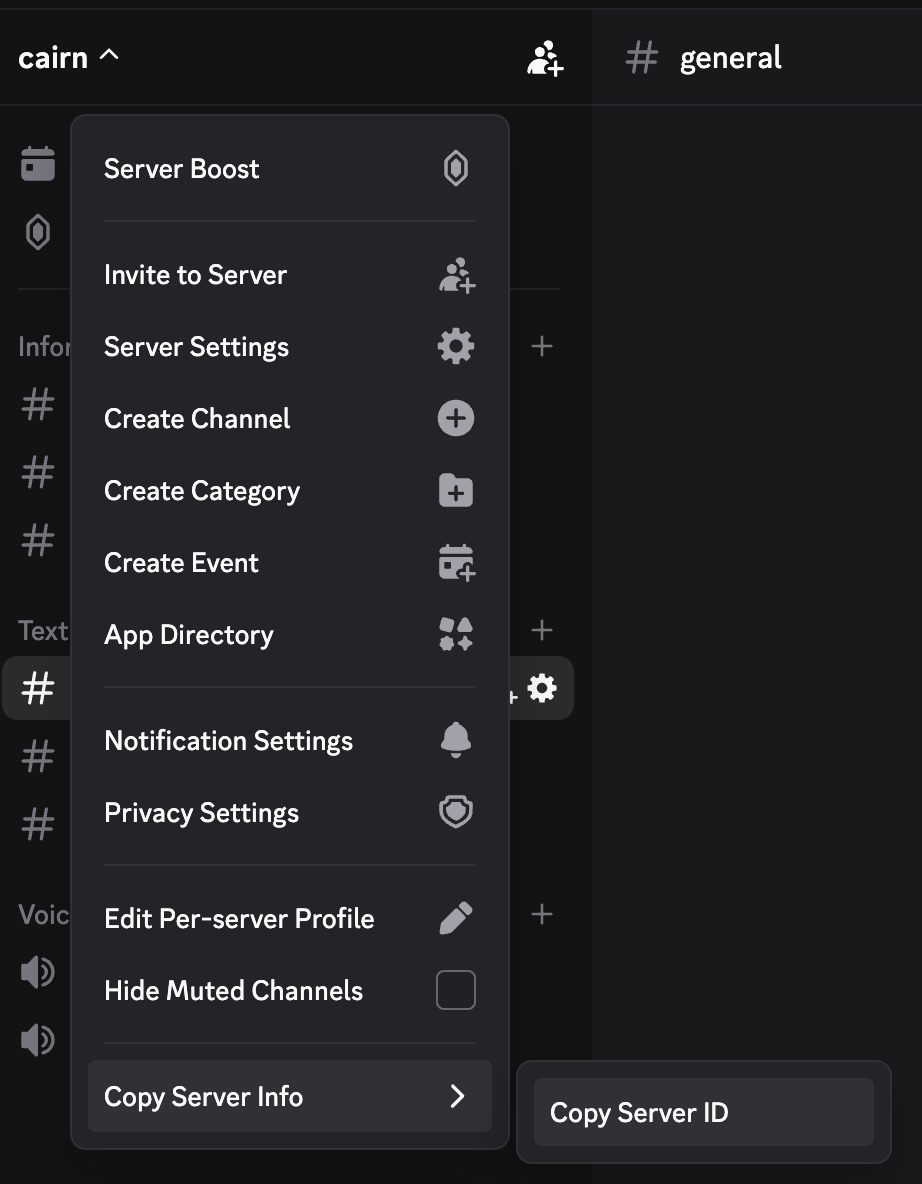
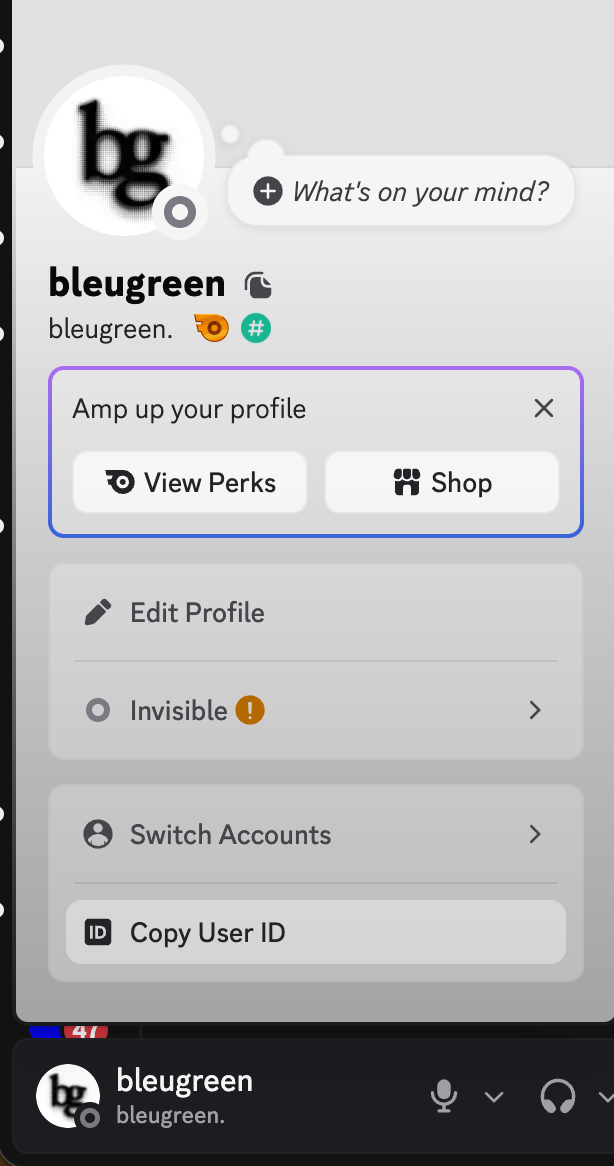
- Right-click the server to copy its ID. Open your profile and copy your user ID; repeat for every person who may reply.
- Open Settings › Channels › Discord. Paste the bot token and Server ID. Add permitted user IDs under Allow replies from, enable the required inbound grants, choose what to deliver, and enable Discord. Cairn creates and binds its project channels and issue threads inside that server as they are needed.
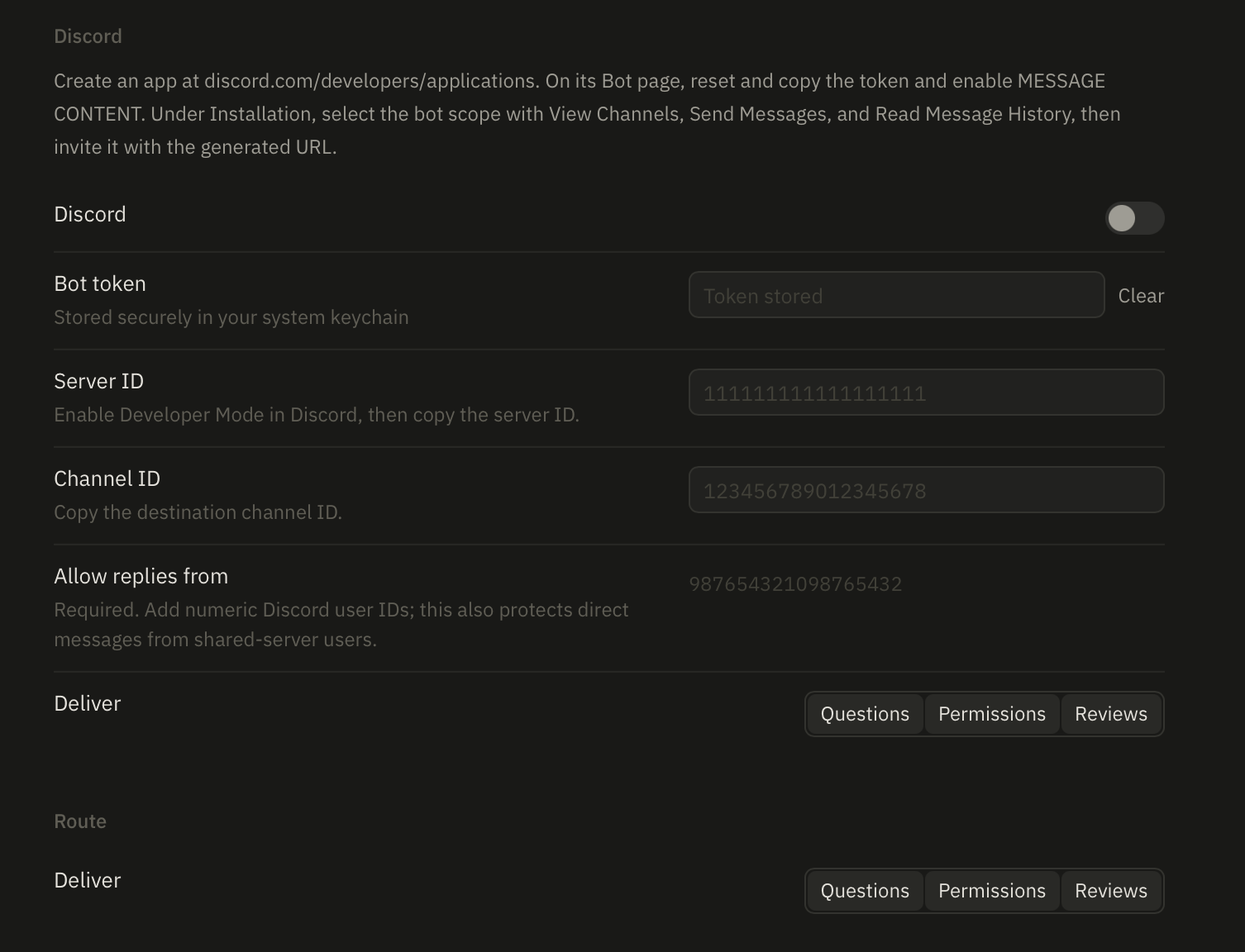
The allowlist also protects direct messages from people who share a server with the bot.
GitHub mentions
GitHub mentions use the GitHub App connection rather than a messaging-provider token. First connect and install your GitHub App for the repository. In a GitHub issue or pull-request comment, mention the installed Cairn App. Cairn receives the comment webhook and creates an issue in the Cairn project whose Git remote matches that repository. Bot comments and repositories without a matching project are ignored.
Screenshot slot: Mentioning the installed Cairn App in a GitHub issue comment.
For the relay and key-custody model, see GitHub.
Troubleshooting
| Symptom | What to check |
|---|---|
| Telegram says the bot cannot send messages to the bot | The Chat ID is the bot ID from the token. Replace it with your user ID from @userinfobot. |
| A bot ignores a reply | Add the sender's provider-specific ID or handle to Allow replies from. |
| Telegram cannot send its first direct message | Open the bot, tap Start, and send it a message before testing Cairn. |
| Discord connects but cannot read replies | Enable Message Content Intent and verify the bot can View Channels and Read Message History. |
| An allowlisted reply is rejected | Enable the matching inbound grant: Permissions for permission decisions, Answers for questions and controls, or Free text for loose instructions. |
| The status says Receiving, but sending fails | Receiving only proves inbound polling. Read the latest outbound failure in Channels, then verify the destination and permissions. |
| No ask arrives while setup looks healthy | Verify that the conversation's delivery selection includes that ask class. Eligible asks post to desktop and channels at the same time; desktop presence does not delay them. |
Cairn surfaces the latest outbound send failure separately from connection status, so a healthy inbound feed cannot hide a broken delivery path.